Digital Stickers Guide: Everything You Need to Know
~Digital stickers have transformed how we personalize our notes, planners, and journals. Whether you're new to digital planning or looking to level up your sticker game, this comprehensive guide covers everything you need to know about finding, using, and organizing digital stickers.
What Are Digital Stickers?
Digital stickers are image files—typically PNG format with transparent backgrounds—designed to decorate digital documents. Unlike physical stickers, they can be:
- Used unlimited times
- Resized without losing quality
- Easily repositioned or deleted
- Stored in unlimited quantities
Types of Digital Stickers
Functional Stickers
- Date headers - Days, months, year markers
- Task boxes - Checkboxes, to-do lists
- Appointment markers - Work, school, personal events
- Priority flags - Important, urgent indicators
- Habit trackers - Water, exercise, mood
Decorative Stickers
- Characters - Cute animals, people, mascots
- Florals - Flowers, plants, botanical elements
- Shapes - Frames, banners, ribbons
- Seasonal - Holiday-themed decorations
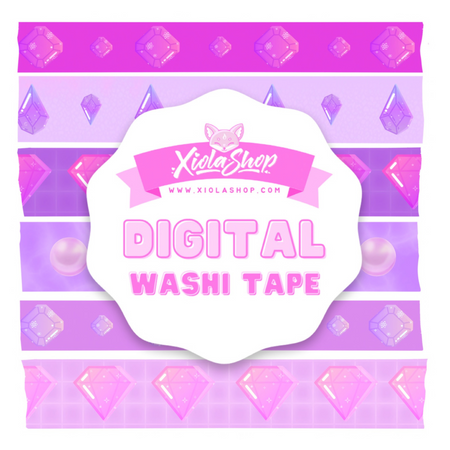
Washi Tape
- Decorative tape strips
- Perfect for borders and accents
- Various patterns and widths
Where to Get Digital Stickers
Quality Sources
- Our digital stationery collection - Curated for digital planning
- Etsy - Massive selection from independent creators
- Creative Market - Professional-quality bundles
- Design Cuts - Regular deals and bundles
Free Resources
- Creator newsletters often include freebies
- Pinterest leads to many free sticker sources
- YouTube tutorial creators share resources
Sticker File Formats Explained
- PNG - Best for transparency, standard format
- GoodNotes/Notability files - Pre-cropped, app-ready
- PDF sticker sheets - Multiple stickers per page, need cropping
- Procreate brushes - For Procreate users, stamp-style
How to Import and Use Stickers
In GoodNotes
- Open the Elements panel (sticker icon)
- Tap + to add a collection
- Import your sticker files
- Tap any sticker to place it
- Resize and rotate as needed
In Notability
- Tap + in your note
- Select Image or Photos
- Navigate to your sticker file
- Place and adjust
Pre-Cropped vs. Sticker Sheets
- Pre-cropped - Ready to use immediately, slightly more expensive
- Sticker sheets - Need to be cropped first, but often cheaper and more designs per purchase
Organizing Your Sticker Collection
Folder Structure
- By function (dates, tasks, decorative)
- By theme (seasonal, everyday)
- By color palette
- By creator (if you have favorites)
Managing Large Collections
- Delete stickers you never use
- Create a "favorites" folder for quick access
- Archive seasonal stickers when not in use
- Keep active collection manageable
Using Stickers Effectively
Design Principles
- Less is more - Don't overcrowd pages
- Consistent style - Match sticker aesthetics
- Functional first - Decoration should enhance, not distract
- Color harmony - Coordinate with your theme
Placement Tips
- Use headers to anchor sections
- Balance stickers across the page
- Leave breathing room around stickers
- Layer strategically for depth
Creating Your Own Stickers
Want to make custom stickers?
- Use Procreate, Affinity Designer, or Canva
- Save as PNG with transparent background
- Keep file sizes reasonable for smooth app performance
Start Your Sticker Collection
Ready to beautify your digital planning? Browse our digital stationery collection for sticker packs designed to make your notes gorgeous and functional!