How to Use GoodNotes for Beginners: A Complete Guide
~If you've just downloaded GoodNotes and feel a little overwhelmed, you're in the right place! GoodNotes is one of the most popular note-taking apps for iPad users, and once you learn the basics, you'll wonder how you ever lived without it.
This beginner-friendly guide will walk you through everything you need to know to start taking beautiful, organized digital notes.
What is GoodNotes?
GoodNotes is a digital note-taking app that turns your iPad into an infinite notebook. You can write with an Apple Pencil, type with a keyboard, import PDFs, and decorate your notes with digital stickers and washi tape. It's perfect for students, planners, and anyone who loves staying organized with a cute aesthetic touch.
Why People Love GoodNotes
- Handwriting feels natural – The Apple Pencil integration is smooth and responsive
- Infinite notebooks – Create as many notebooks as you need without running out of pages
- Search handwriting – GoodNotes can recognize and search through your handwritten notes
- Customization – Add covers, stickers, and custom templates to match your aesthetic
Getting Started: Your First Notebook
When you open GoodNotes for the first time, here's how to create your first notebook:
Step 1: Create a New Notebook
Tap the "+" button in the top corner and select "Notebook." You'll be prompted to choose a cover and paper type. Don't stress too much about this—you can always change it later!
Step 2: Choose Your Paper
GoodNotes offers several paper templates:
- Blank – Perfect for free-form notes and sketching
- Lined – Great for traditional note-taking
- Grid/Dotted – Ideal for bullet journaling and structured layouts
- Custom templates – You can import digital planners and custom papers!
Step 3: Start Writing
Select the pen tool from the toolbar and start writing! Experiment with different pen styles and colors to find what feels right for you.
Essential Tools You Need to Know
The GoodNotes toolbar might look intimidating, but these are the main tools you'll use:
Pen Tool
Your main writing tool. You can adjust thickness, color, and pen style (fountain pen, ballpoint, or brush pen).
Highlighter
Perfect for marking important information. The highlighter automatically goes behind your text, which is super satisfying!
Eraser
Made a mistake? The eraser tool has different sizes. Pro tip: Use "stroke eraser" to delete entire strokes at once.
Lasso Tool
This is a game-changer! Select any content on your page to move it, resize it, or change its color. It's like magic for reorganizing messy notes.
Image Tool
Add photos, screenshots, or digital stickers to your notes. This is where you can really make your notes cute and personalized!
Making Your Notes Aesthetic
One of the best parts of digital note-taking is the ability to customize everything! Here's how to level up your note-taking game:
Add Digital Stickers
Import sticker packs into GoodNotes and use them to decorate your notes. Look for PNG files with transparent backgrounds—they work best! Our digital sticker collection is designed specifically for apps like GoodNotes.
Use Digital Washi Tape
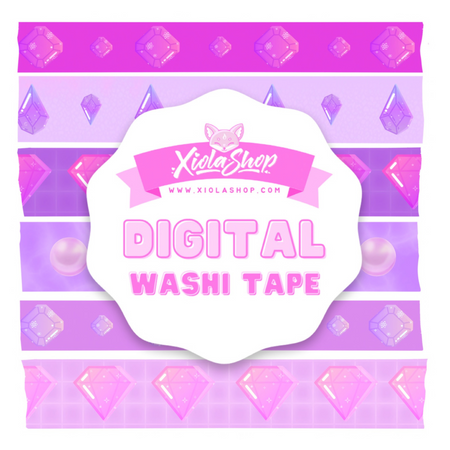
Washi tape strips can act as headers, dividers, or decorative accents. Simply import them and resize to fit your layout.
Try Digital Planners
Instead of blank notebooks, try importing a pre-made digital planner. They come with hyperlinked tabs, dated pages, and beautiful designs that make planning actually enjoyable.
Pro Tips for Beginners
- Use folders – Organize your notebooks into folders by subject, semester, or project
- Enable iCloud sync – Access your notes on all your Apple devices
- Learn the gestures – Two-finger tap to undo, three-finger tap to redo
- Zoom in for neat writing – Use the zoom window for detailed work
- Export your notes – Share as PDF, image, or GoodNotes format
Ready to Make Your Notes Cuter?
Now that you know the basics of GoodNotes, it's time to personalize your digital notebook! Browse our digital stationery collection for stickers, washi tape, and planner supplies designed to work perfectly with GoodNotes.
Looking for freebies to get started? Check out our free digital downloads!
Related Posts: